
Read your dashboard
Understand every card on the Home screen, from what is left to spend to your net worth forecast.
Updated 2026-10-08
The Home screen is a summary of your current budget period. Each card answers one question, and you can scroll down through all of them. The numbers below are examples; yours follow your own data.
Where to find it
Open Home from the bottom bar. Pull down to refresh it.
Steps
- At the top,
Left to spendshows how much of this period's budget you have left, with the period's dates above it and the budgeted total below. If you have spent more than you budgeted, the number turns red and shows a minus sign. Credit to payis what you currently owe on your credit accounts.
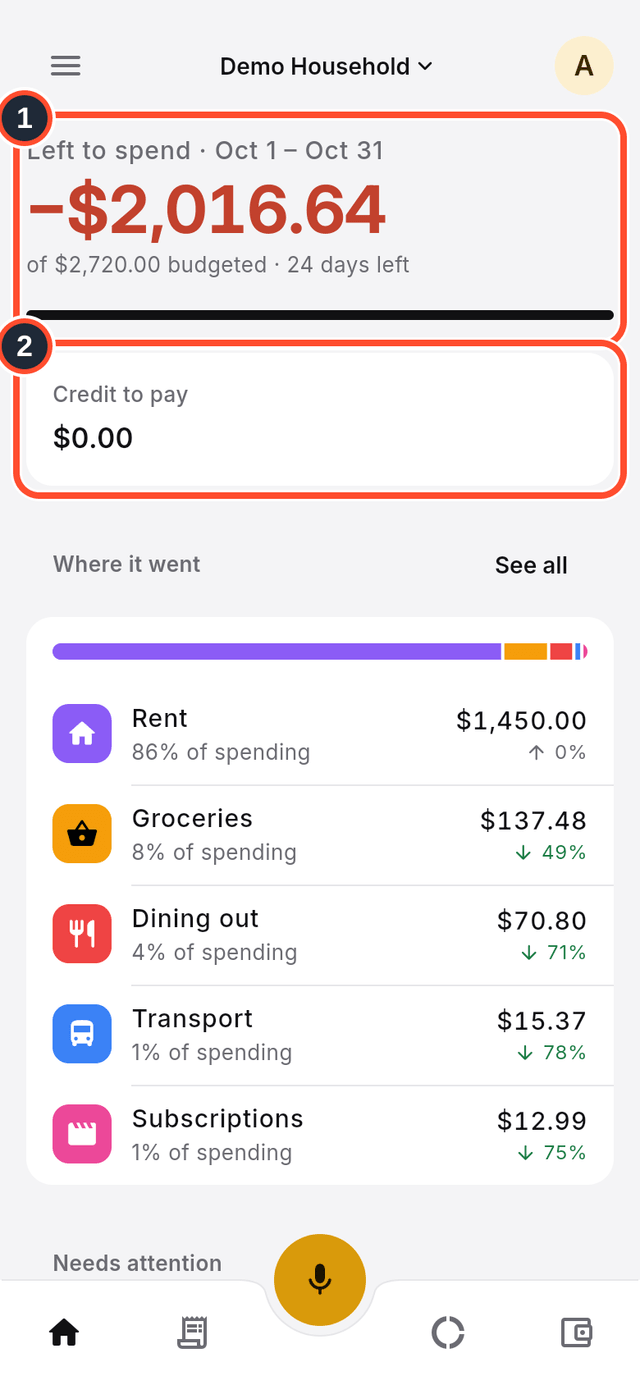
Where it wentranks your categories by spending, with each one's share of the total and an arrow showing whether it is up or down compared with the last period. TapSee allfor the full list.
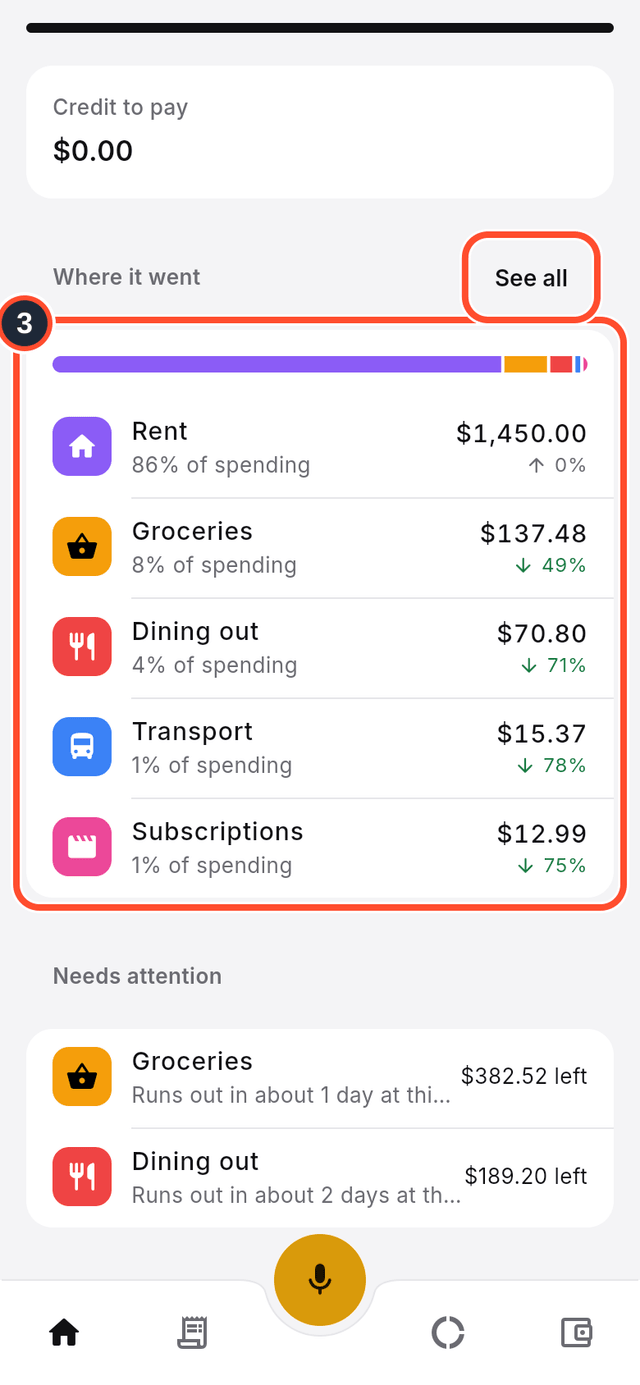
Needs attentionlists categories that are likely to run out of budget before the period ends, with a rough estimate of when and how much is left.Spending pacecompares what you have spent so far with a forecast for the whole period and with what you usually spend.
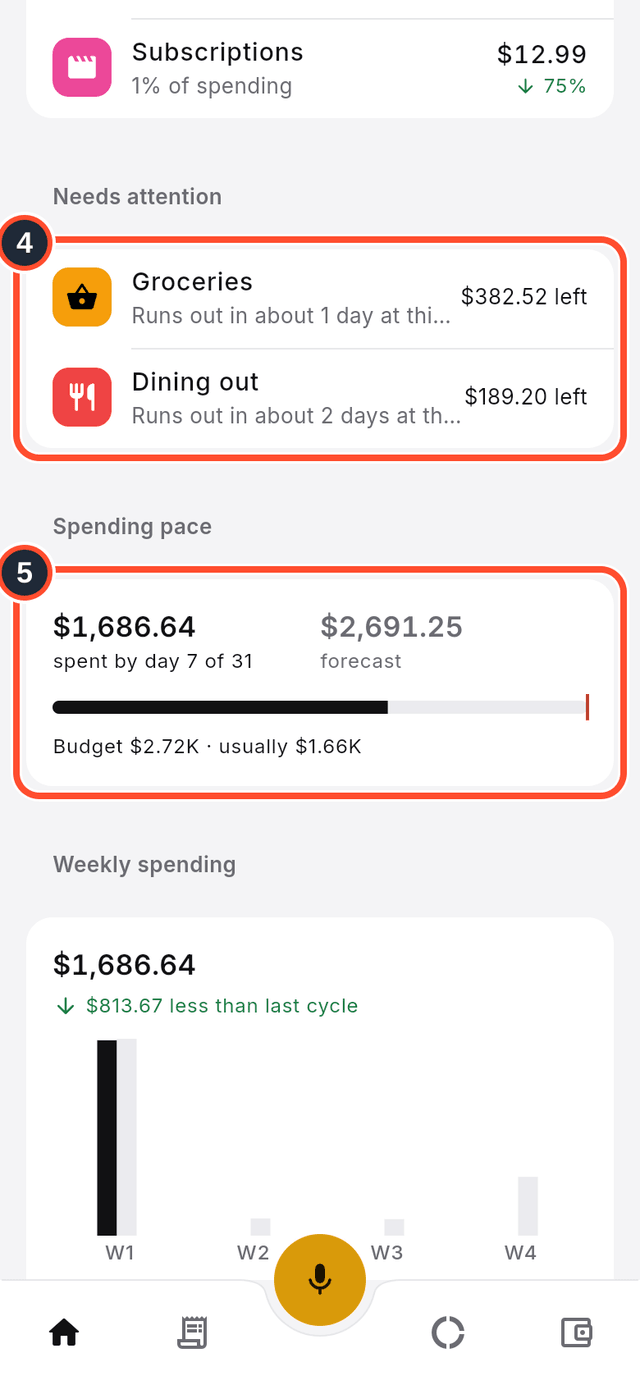
Weekly spendingcompares each week of this period with the same week of the last one.Net worthcharts the total of your accounts over time. The dashed part of the line is a forecast.
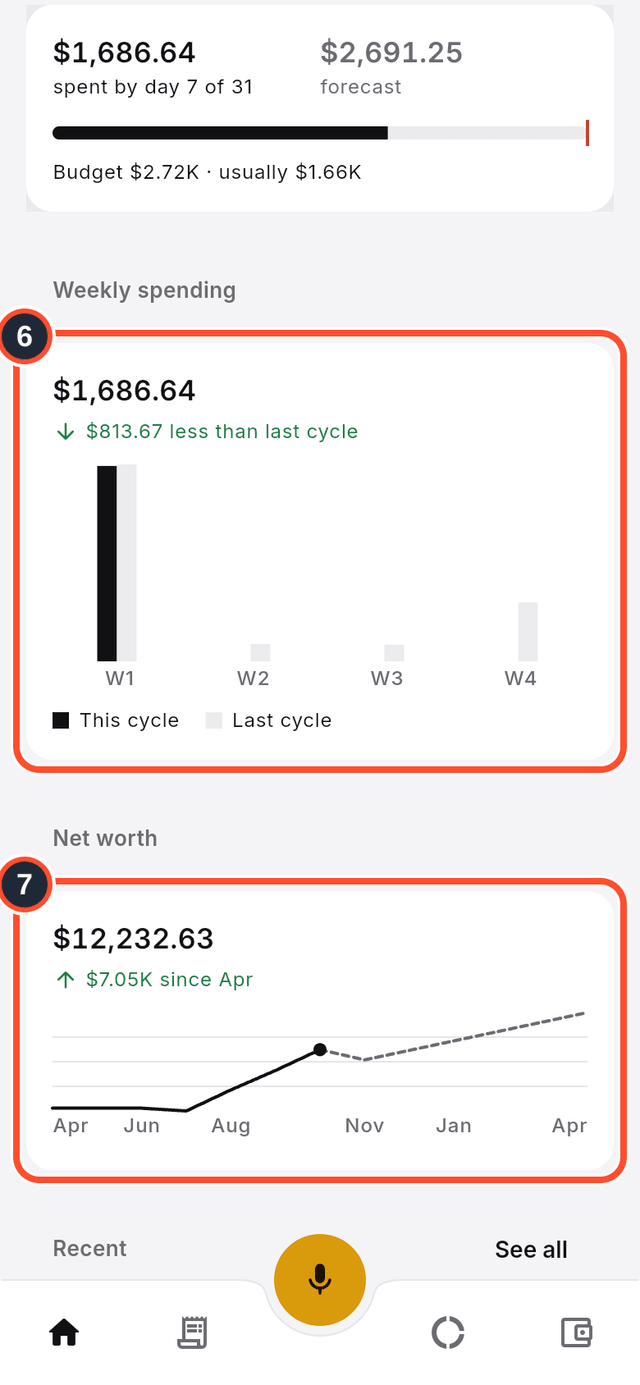
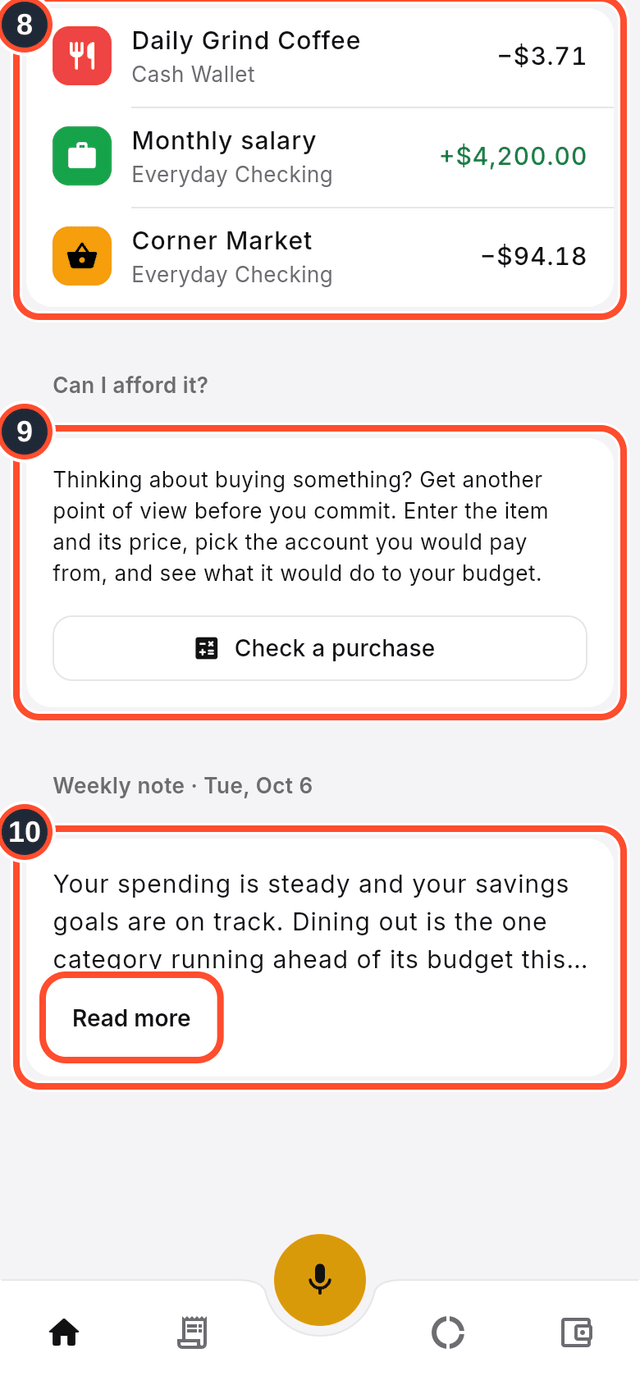
Recentshows your latest transactions. Tap one to open it.Can I afford it?checks a purchase before you make it.- The weekly note is a short summary of how you are doing, refreshed every week. Tap
Read moreto read all of it.
Tips
- The period follows your budget cycle. To start it on a different day of the month, change
Budget Cycle Reset Dayin Settings. - A card without data yet explains what to do to fill it, for example by setting a budget.