
Schedule a recurring transaction
Create a rule that adds a transaction for you every day, week, month or year.
Updated 2026-10-07
Some money moves on a schedule: rent, a subscription, a salary. A scheduled transaction adds it for you every time it is due.
Where to find it
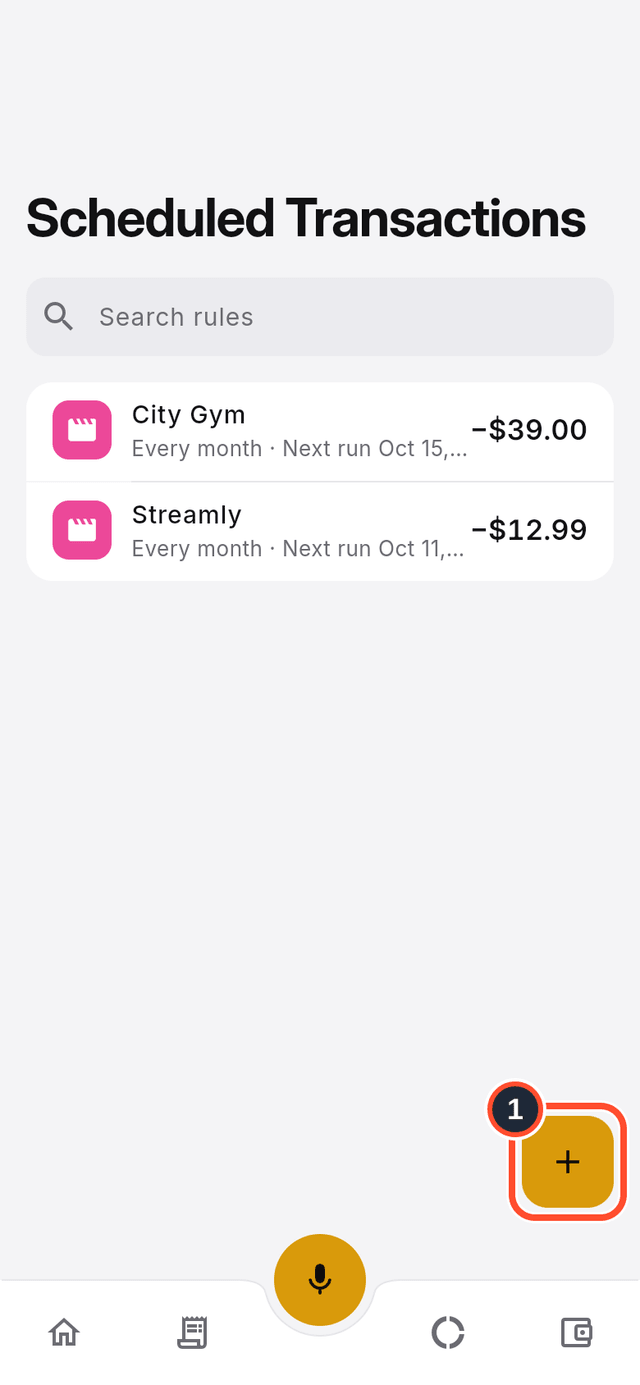
Open the app menu and choose Scheduled Transactions. Each rule shows how often it repeats and when it runs next.
Steps
- Tap the round + button (its label is
Create rule).
- Choose
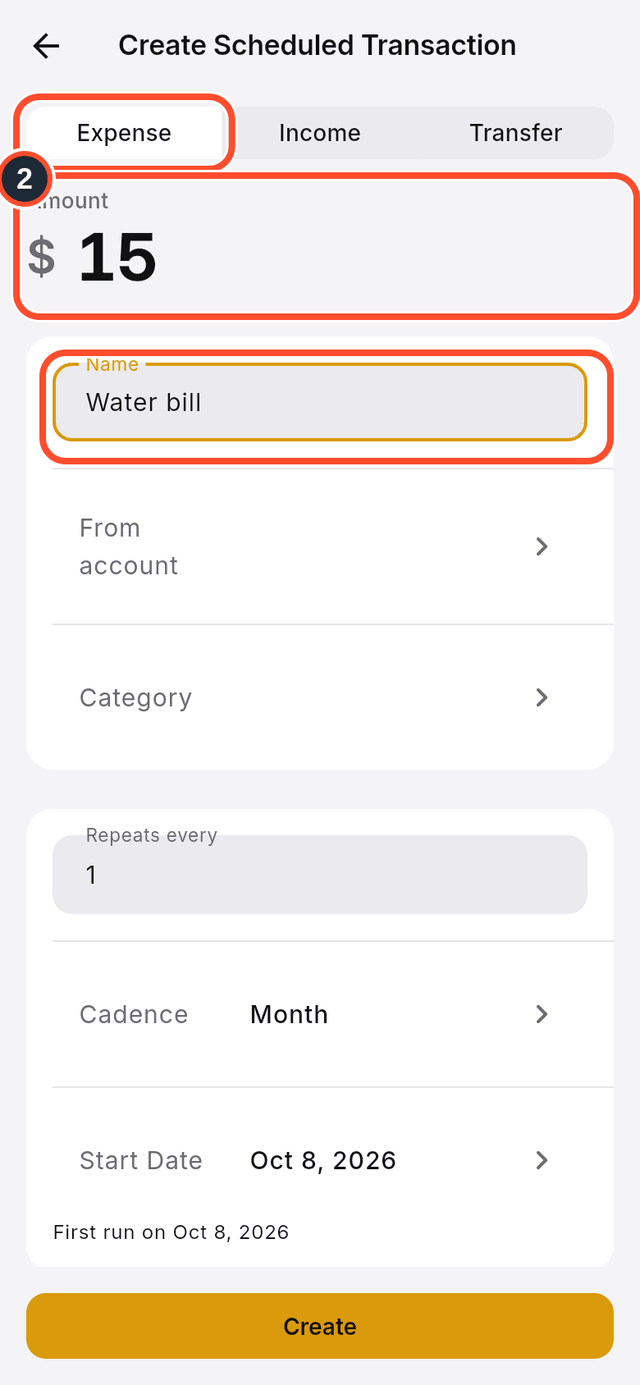
Expense,IncomeorTransfer, then type theAmountand aName.
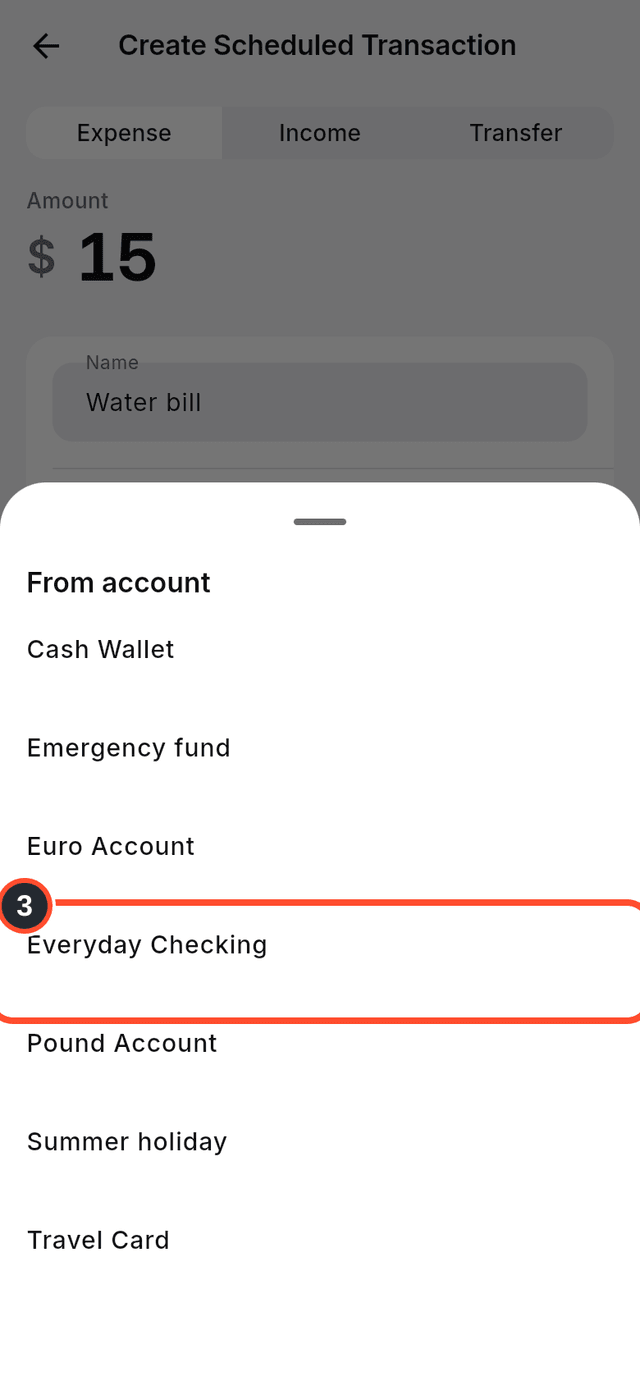
- Tap
From accountand pick the account the money leaves.
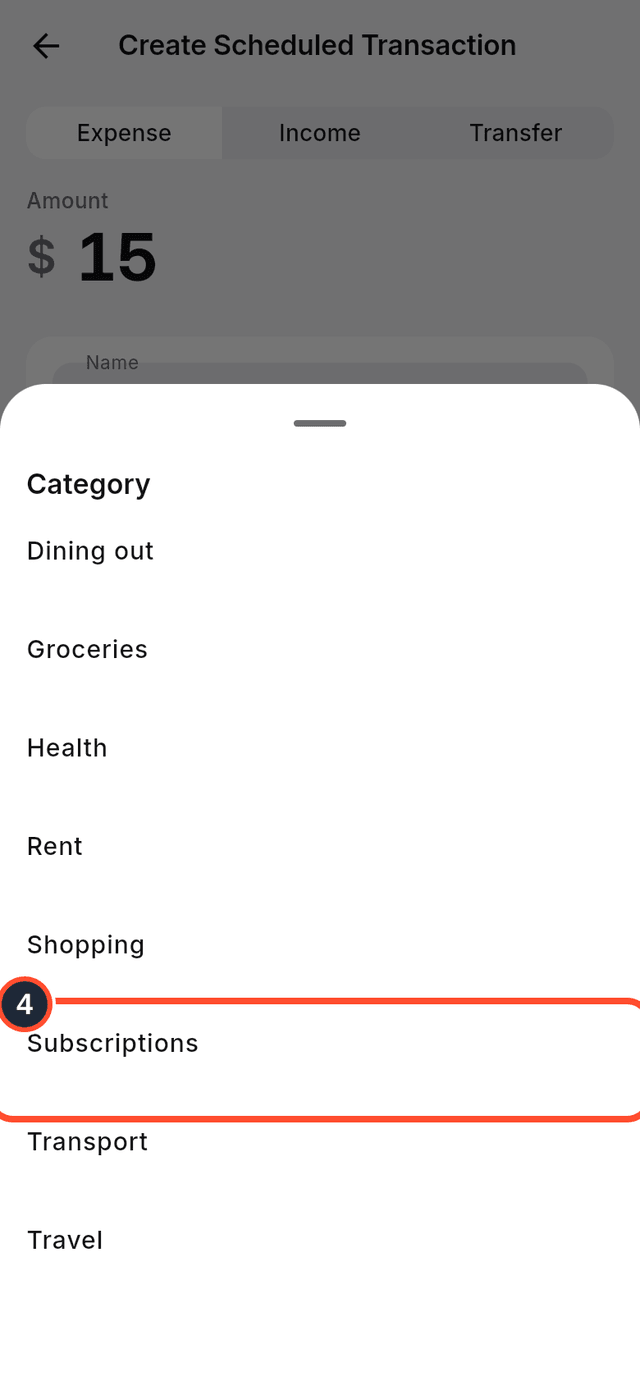
- Tap
Categoryand pick one.
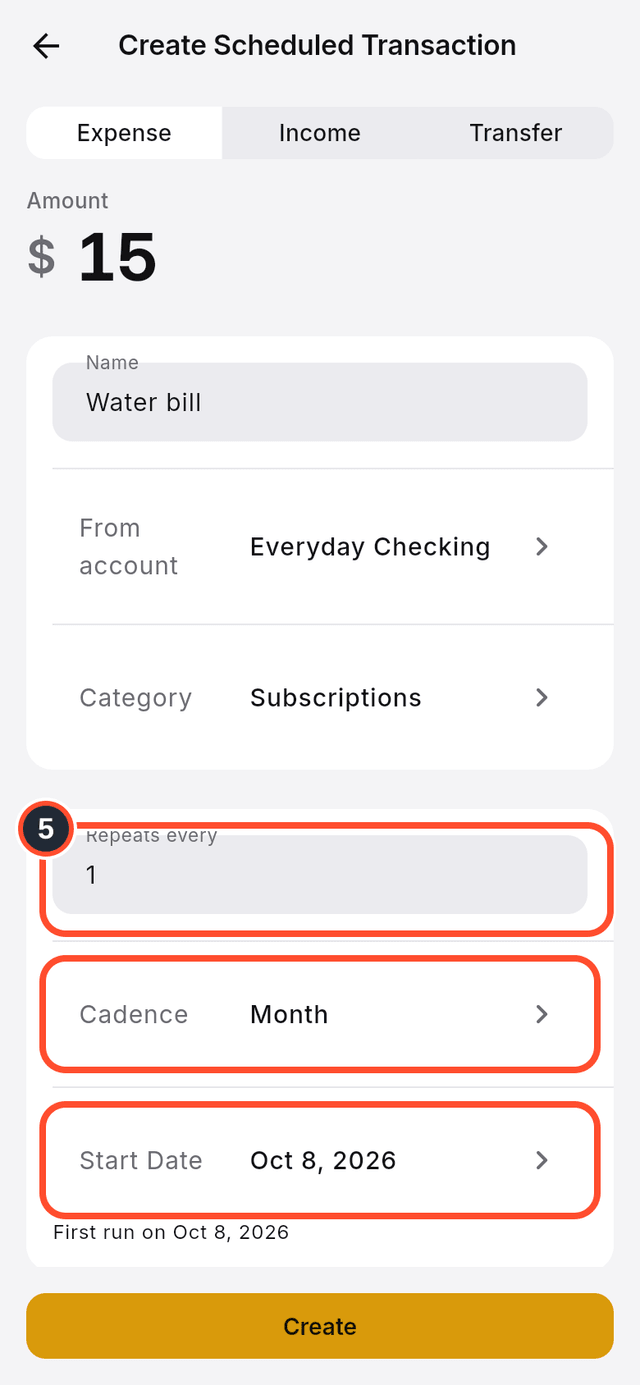
- Set how often it repeats with
Repeats everyandCadence, and choose theStart Date.
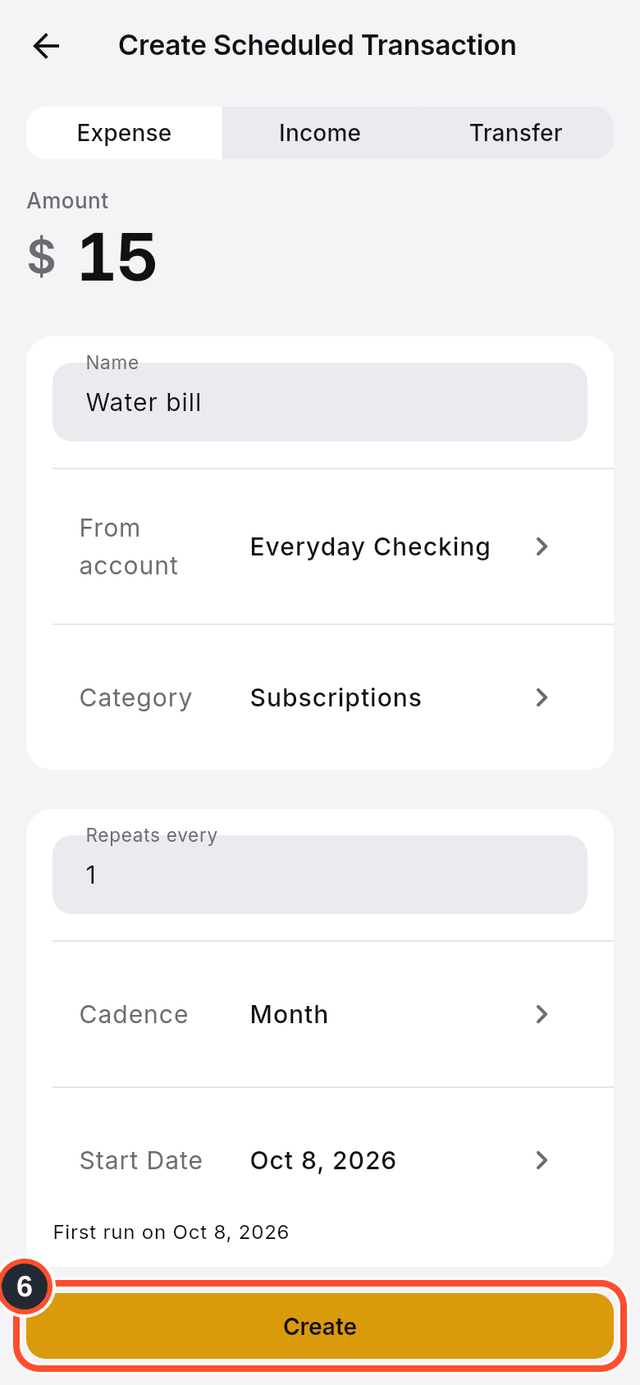
- Tap
Create.
Tips
- You can also create one from the new transaction form by switching on
Make this recurring. - Each rule in the list shows its
Next run.