
Import transactions from bank emails
Forward your bank's notification emails to DuoCents and review the transactions it finds.
Updated 2026-10-08
Many banks email you every time money moves. If you forward those emails to DuoCents, it reads them and prepares the transactions for you, so you only have to confirm them.
Where to find it
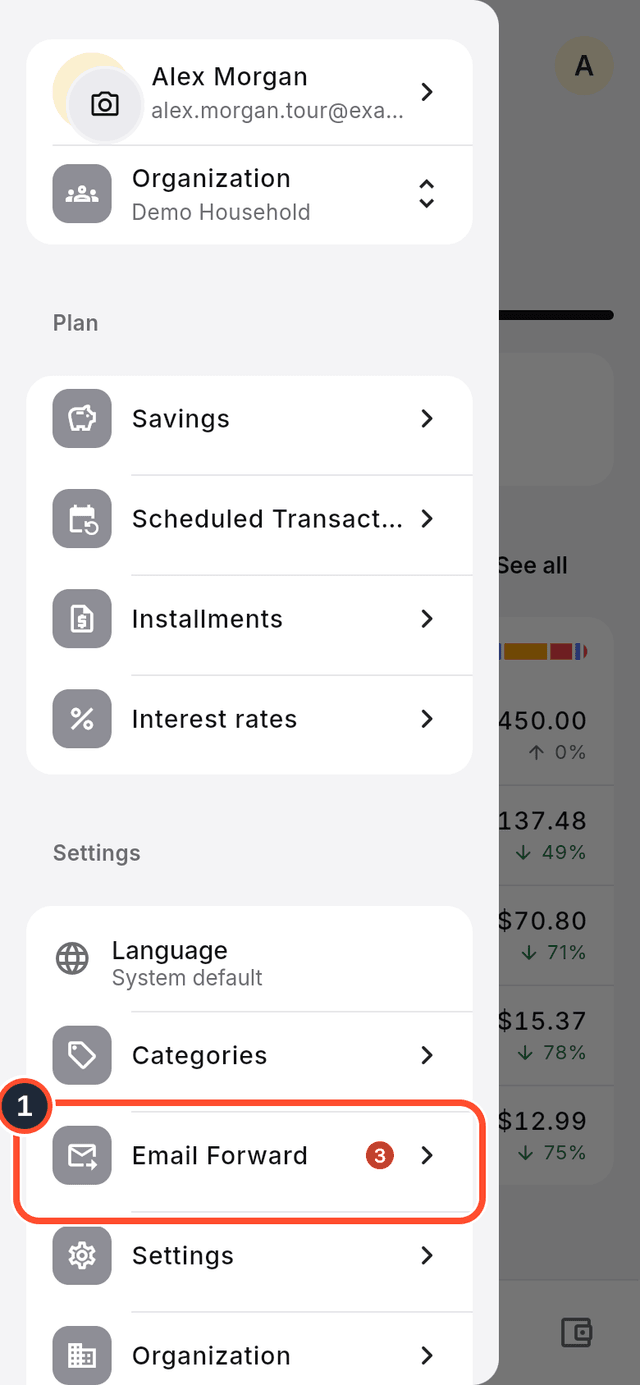
Open the app menu from the menu button at the top left of the Home screen and tap Email Forward. A number badge shows how many transactions are waiting for you.
Steps
- Open the app menu and tap
Email Forward.
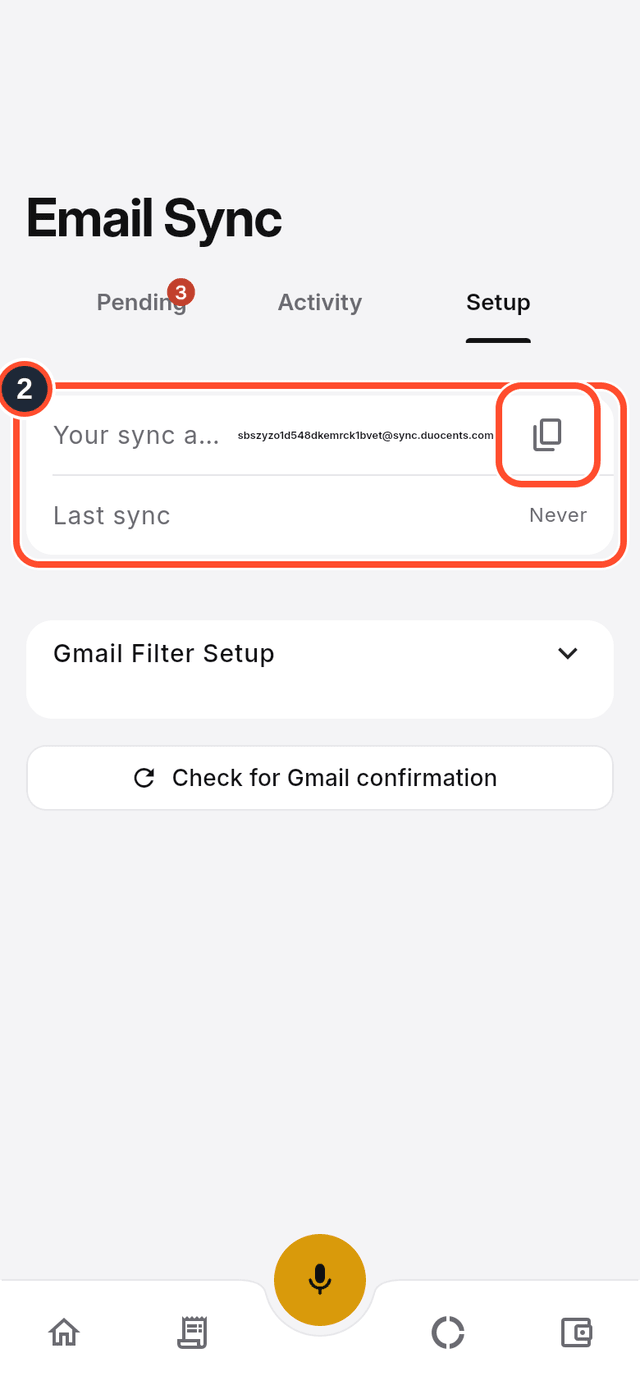
- Open the
Setuptab.Your sync addressis the address that belongs to your organization. TapCopyto copy it.
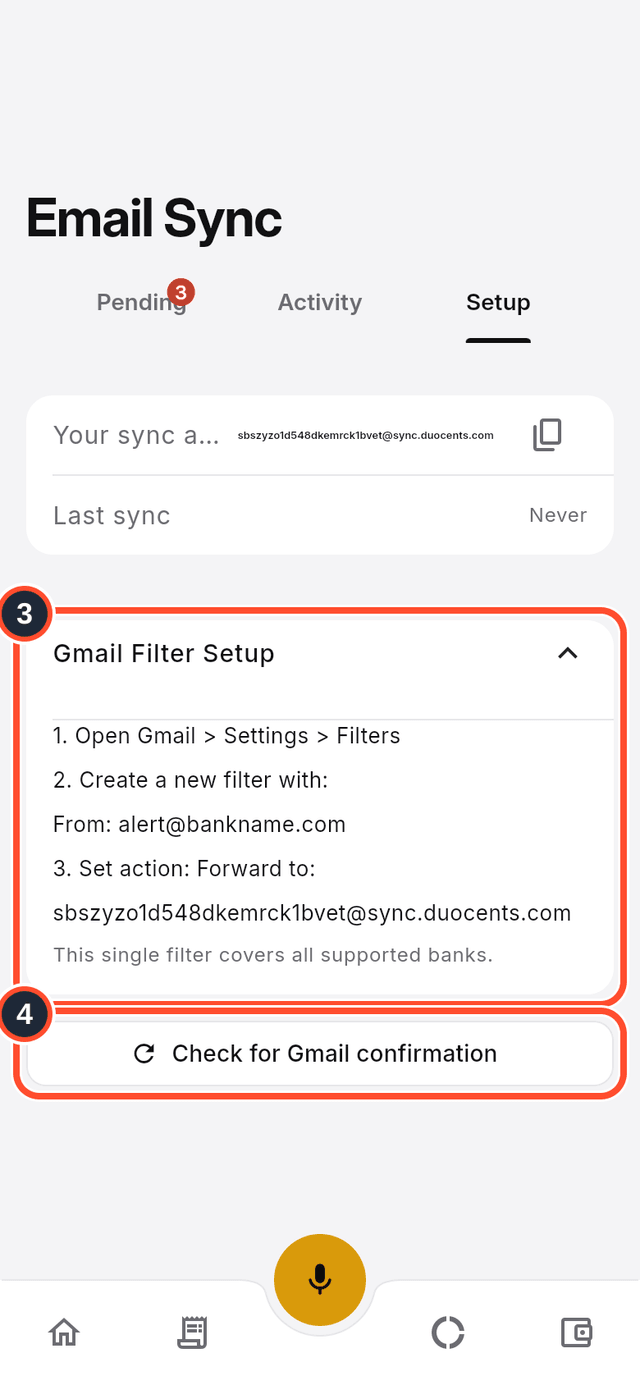
- Tap
Gmail Filter Setupto read how to make a Gmail filter that forwards your bank's emails to that address. - Gmail asks you to confirm the forwarding address. After you do, come back and tap
Check for Gmail confirmation.
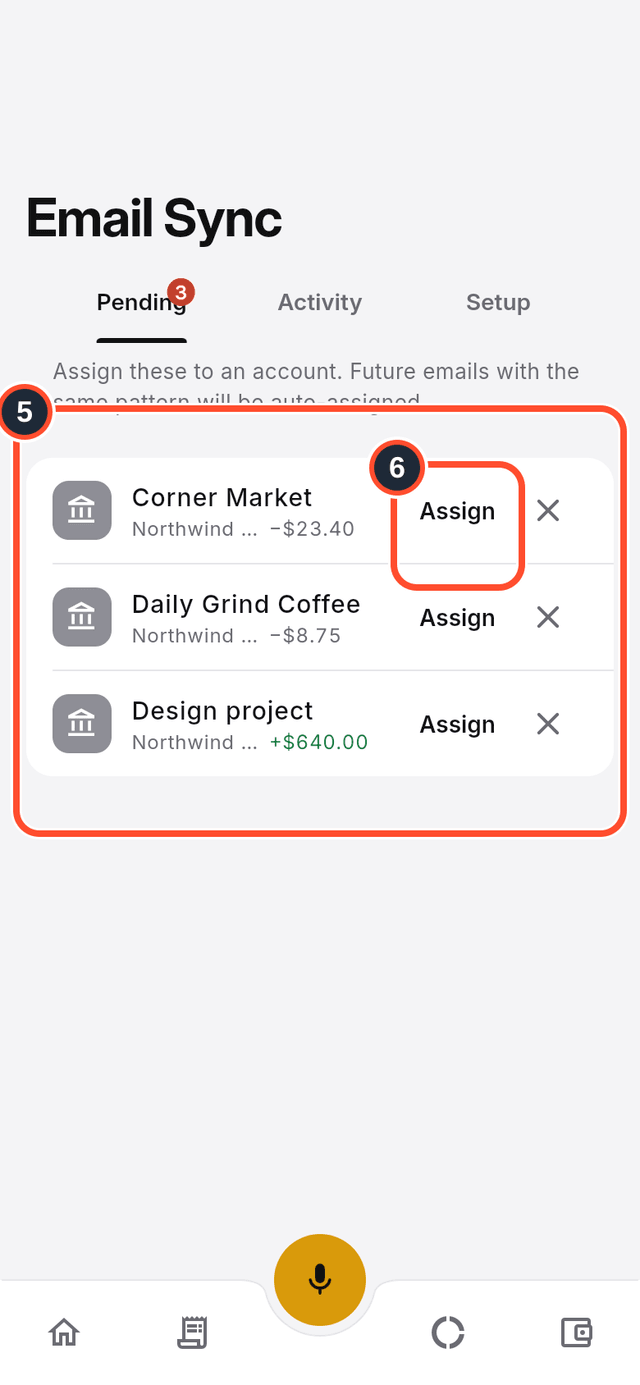
- Open the
Pendingtab. Transactions found in your forwarded emails wait here for your review. - Tap
Assignon a transaction.
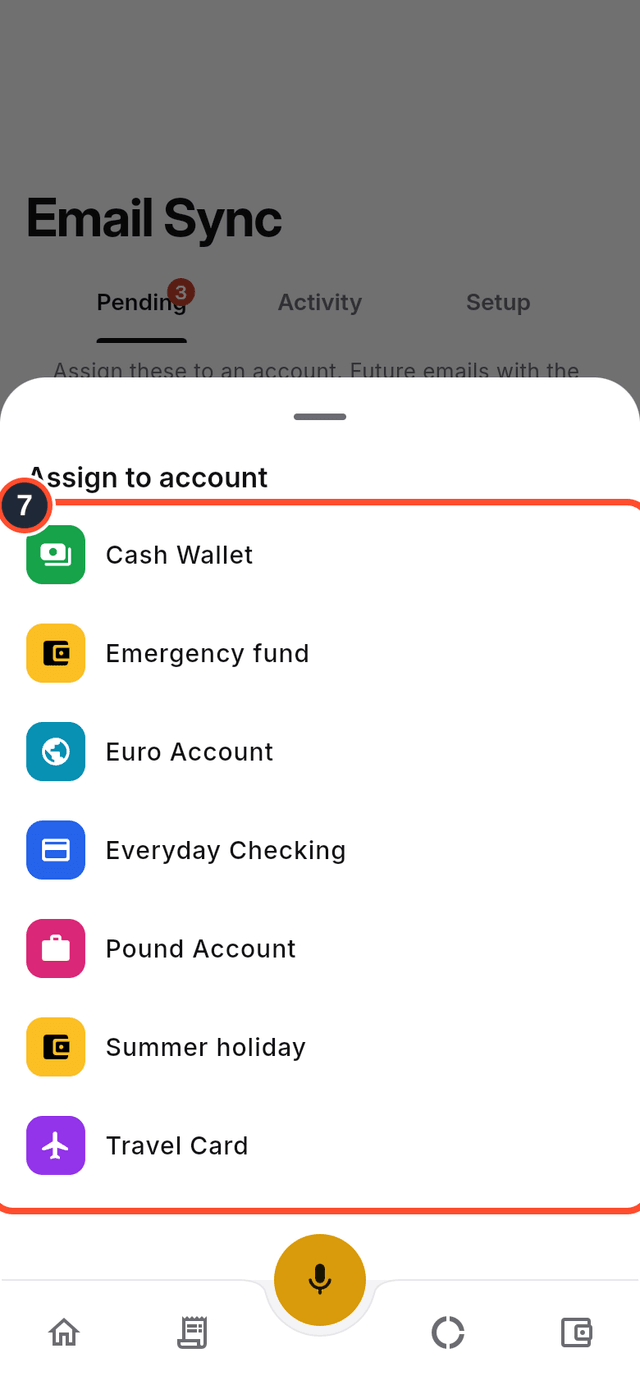
- Choose the account in
Assign to account. DuoCents creates the transaction in that account, and from then on emails with the same pattern are assigned to it automatically.
Tips
- Tap the ✕ on a pending transaction (its label is
Dismiss) to discard it. - The
Activitytab lists what has been synced. - The filter covers every bank DuoCents supports, so you only need to create it once.