
Settings, organization and language
Change your photo, your organization's details and the app language, and invite someone to share your finances.
Updated 2026-10-08
Everything about you and your shared workspace lives in the app menu. Your organization is the shared set of accounts, budgets and transactions that you and the people you invite work on together.
Where to find it
Open Home from the bottom bar, then tap the menu button at the top left.
Steps
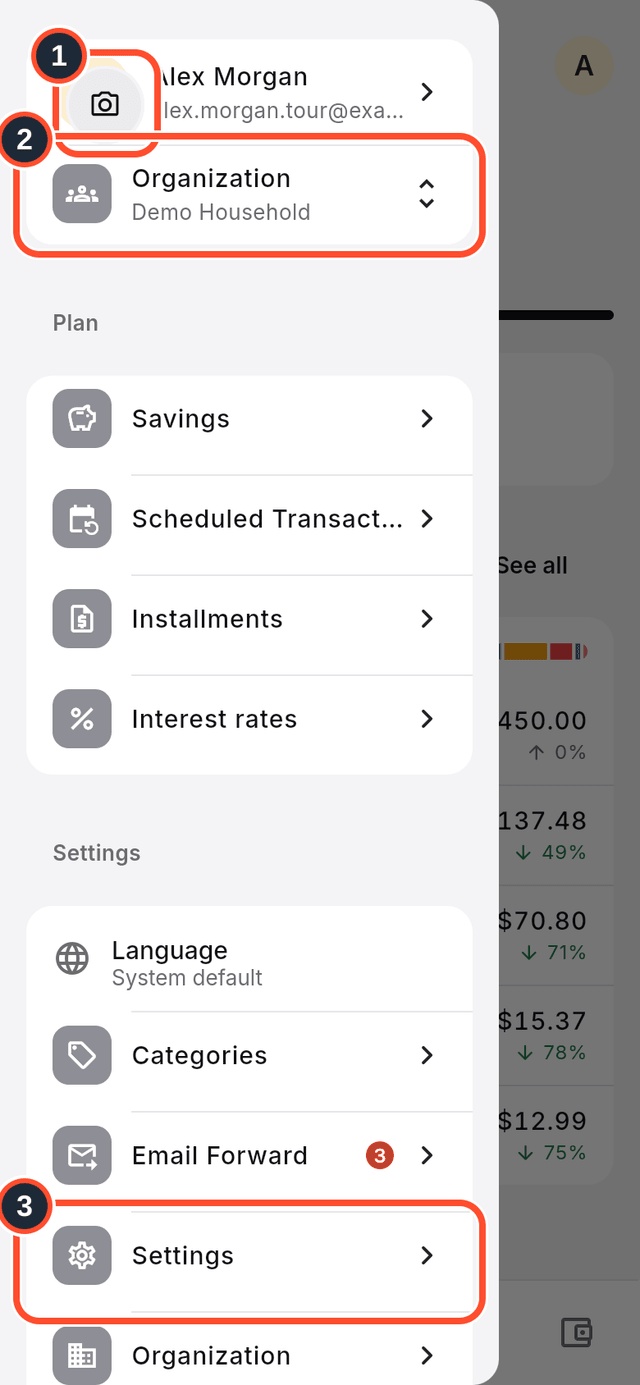
- Tap the camera on your picture (its label is
Change Photo) to choose a new photo. - The
Organizationrow under it shows the organization you are working in. Tap it to switch to another organization you belong to. - Tap
Settings.
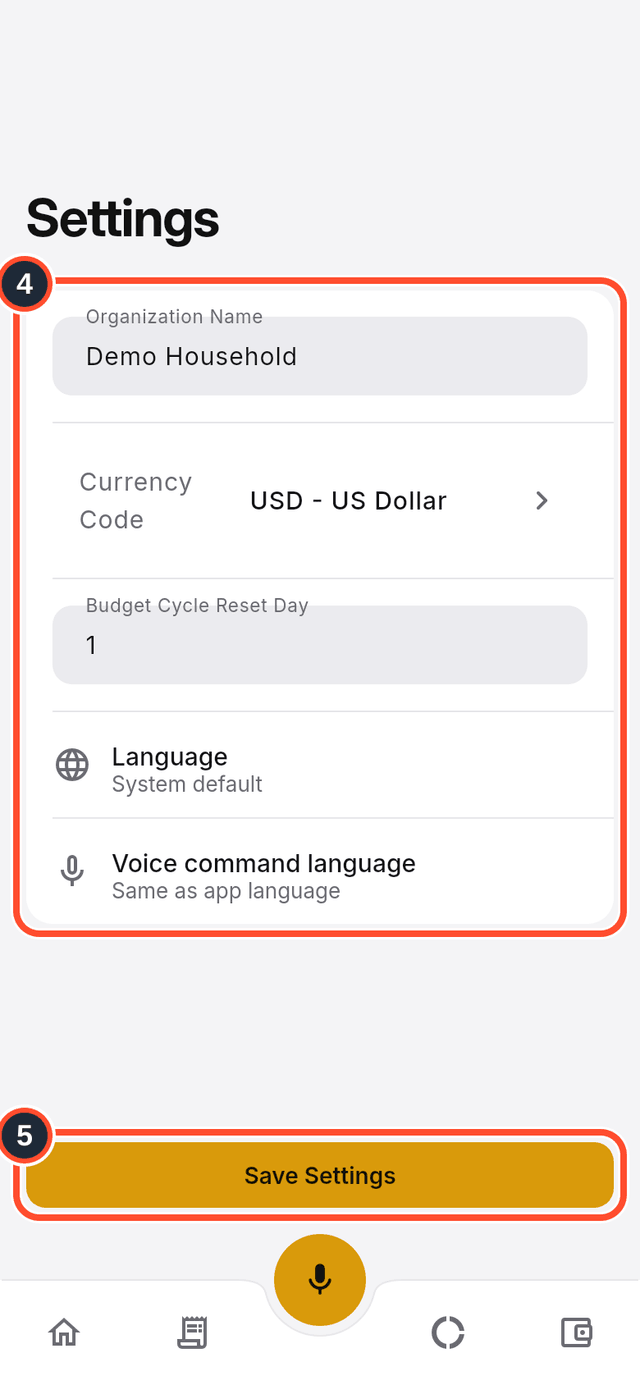
- Change the
Organization Name, theCurrency Codeor theBudget Cycle Reset Day, the day your budget cycle restarts. - Tap
Save Settings.
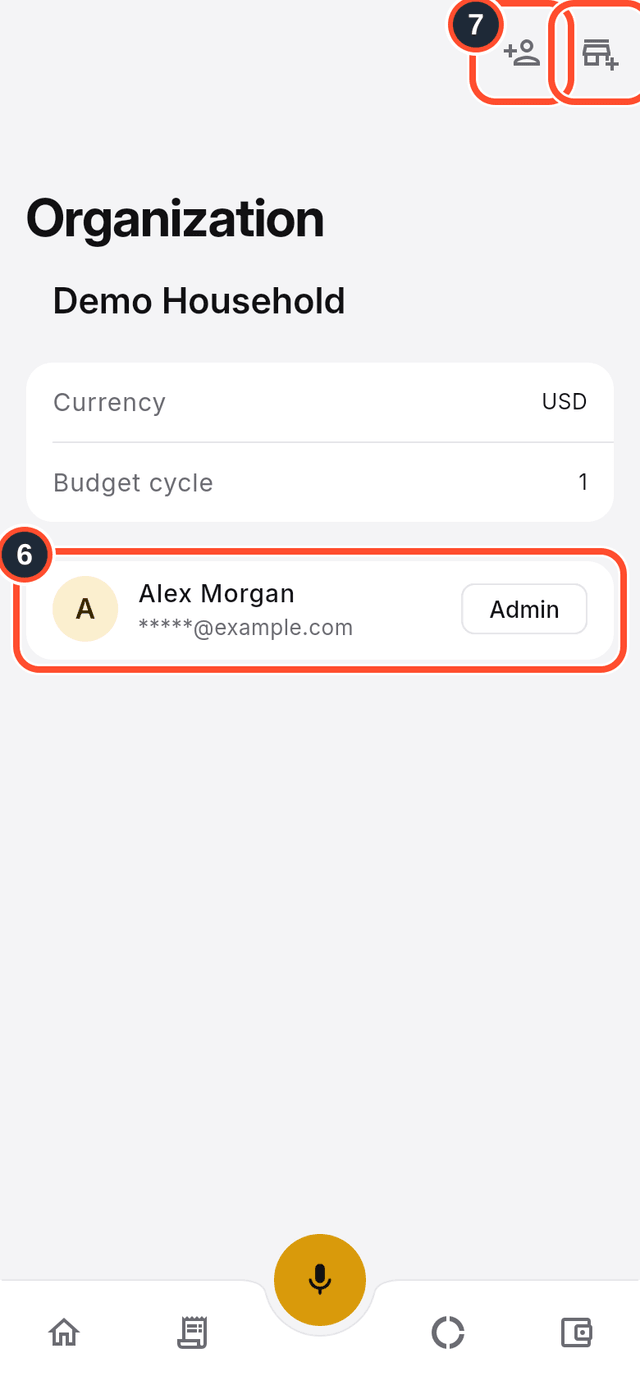
- Back in the menu, tap
Organizationto see the organization's currency, its budget cycle and its members with their roles, such asAdmin. - Tap the person icon at the top right (its label is
Invite member) to invite someone.
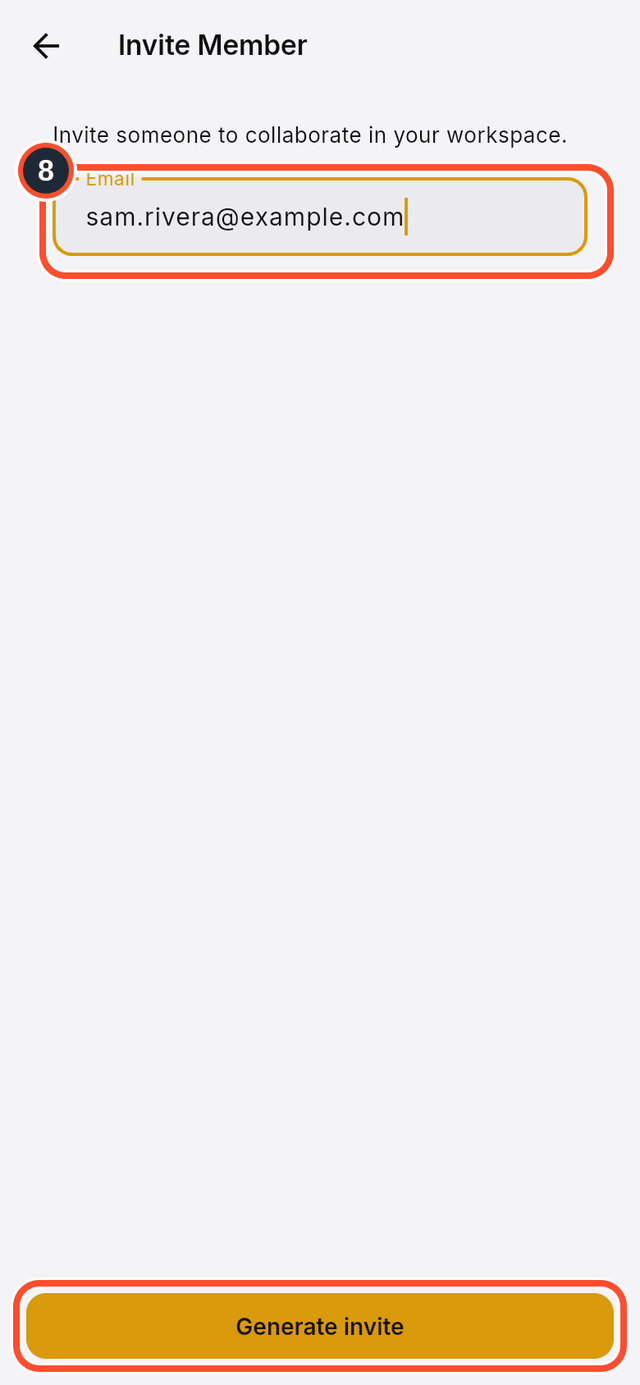
- Enter their
Emailand tapGenerate invite. DuoCents emails them the invitation.
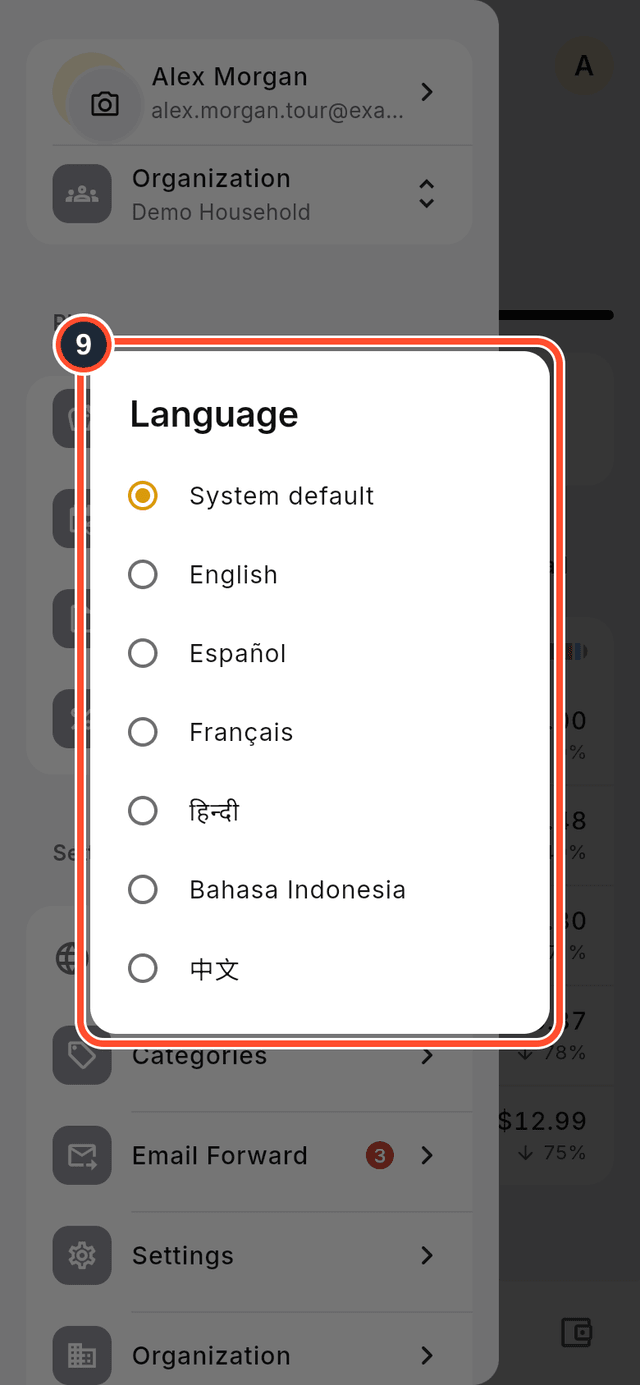
- To change the language, tap
Languagein the menu and choose one.System defaultfollows your device.
Tips
- Only admins can invite members.
- The icon next to the invite icon (its label is
Create organization) creates a new organization. - If you dictate messages to Bella in a different language, set
Voice command languagein Settings.