
Use DuoCents offline
Keep reading your data and adding transactions without a connection, then watch it sync.
Updated 2026-10-08
DuoCents keeps working when your connection drops. Screens you have already opened still show your data, and you can add transactions that are sent when you are back online.
Where to find it
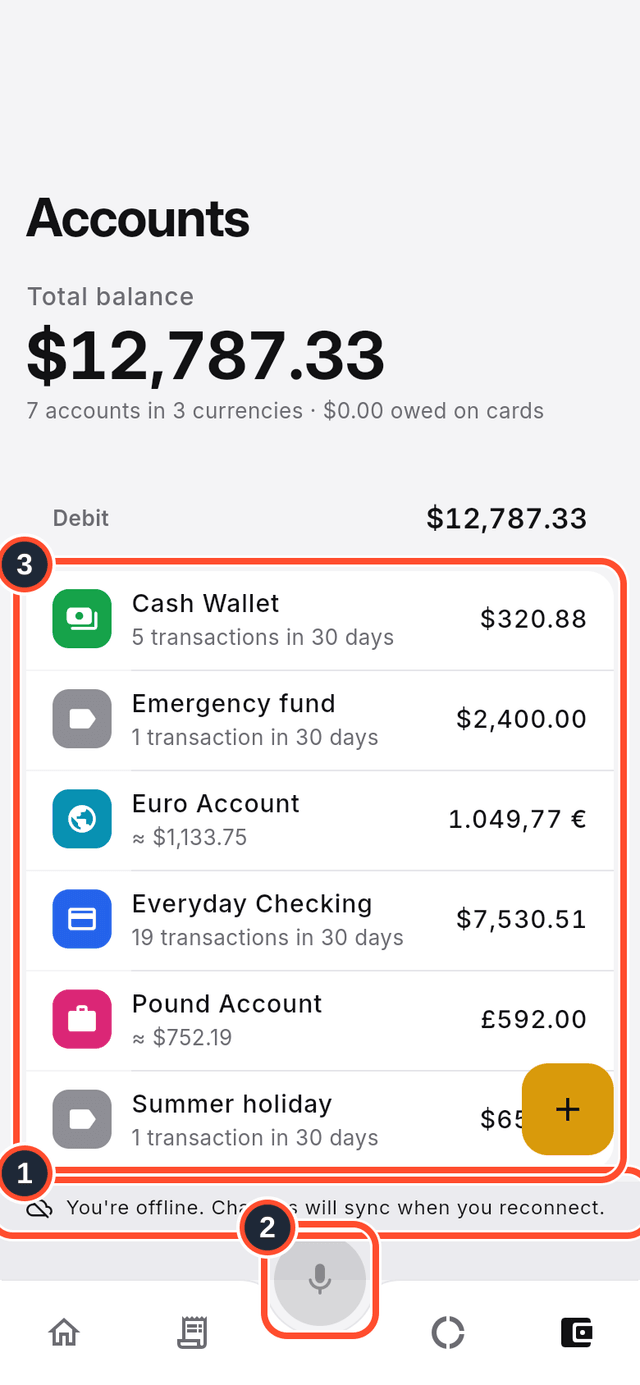
Nothing to switch on. When the connection is lost, a banner appears above the bottom bar. The sync screen is in the app menu.
Steps
- When you go offline, the banner says
You're offline. Changes will sync when you reconnect. - Features that need a connection, such as the Bella chat, are greyed out and say
Available when you're online. - Screens you opened before, such as
Accounts, keep showing your data.
- To record a purchase, open
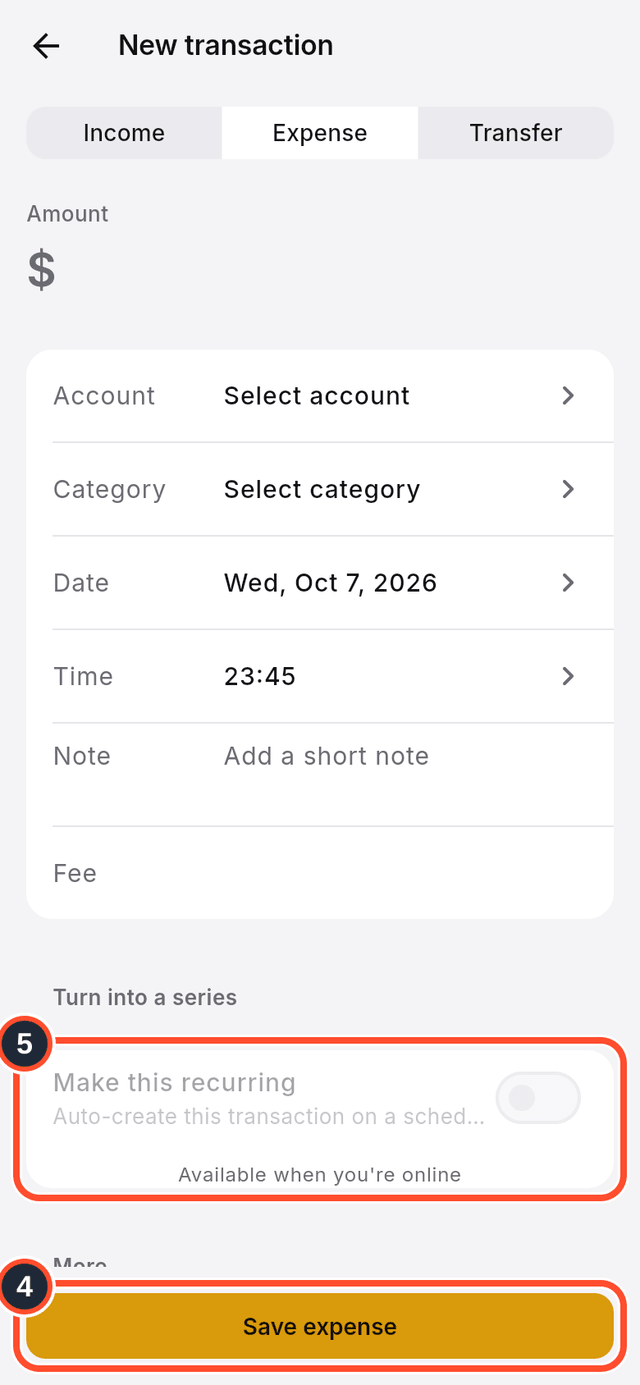
Transactions, tapCreate transaction, fill in the form and tapSave expense. The transaction is stored on your device. - Options marked
Available when you're online, such as recurring transactions and receipt attachments, wait until you are back online.
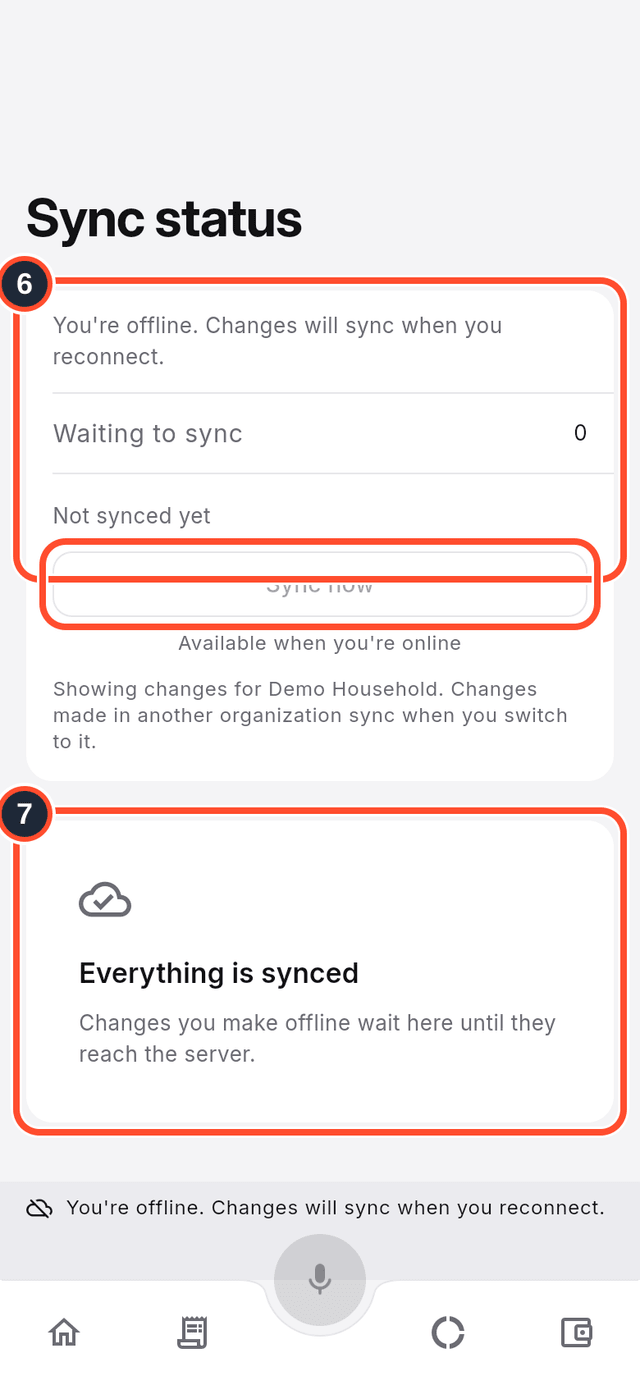
- Open the app menu, scroll down and tap
Sync statusto see how many changes areWaiting to sync. - When your connection returns, those changes are sent on their own, and the screen tells you when everything is synced. You can also tap
Sync now.
Tips
- Adding transactions works offline. Other changes, such as new accounts or settings, need a connection.
- Changes you make offline stay on your device until they reach the server, so keep the app installed until
Sync statusshows nothing waiting.