
Sign in to DuoCents
Sign in with Google or with a one-time code sent to your email.
Updated 2026-10-07
You sign in with a one-time code sent to your email, or with your Google account. There is no password to remember.
Where to find it
Open DuoCents in your browser or on your phone. When you are not signed in, the sign-in screen opens by itself.
Steps
- Choose how to sign in: tap
Continue with Google, or use the email field below it.
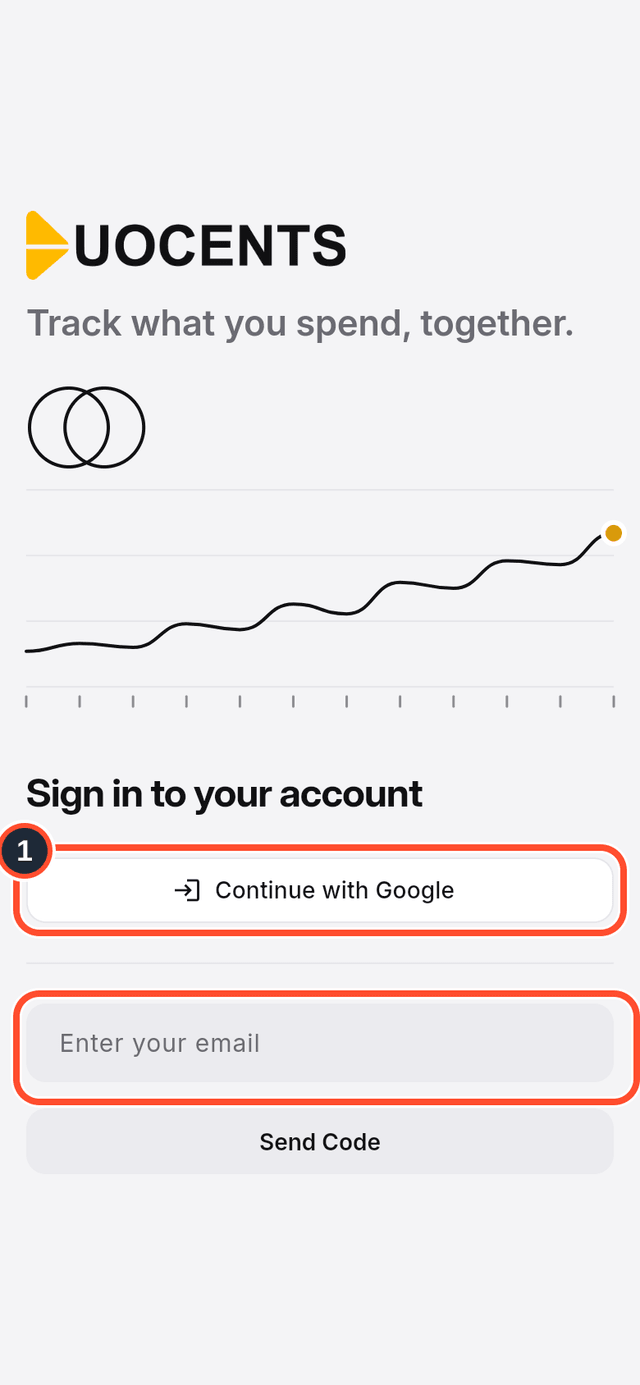
- Type your email in the field
Enter your email, then tapSend Code.
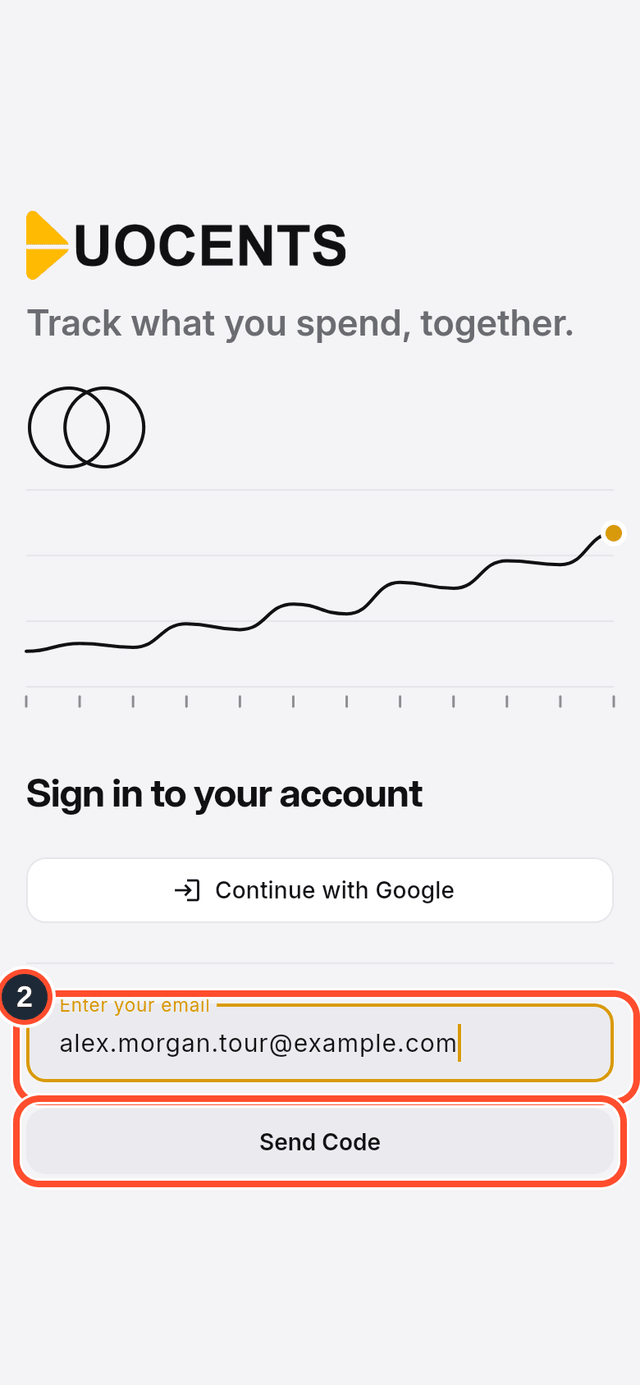
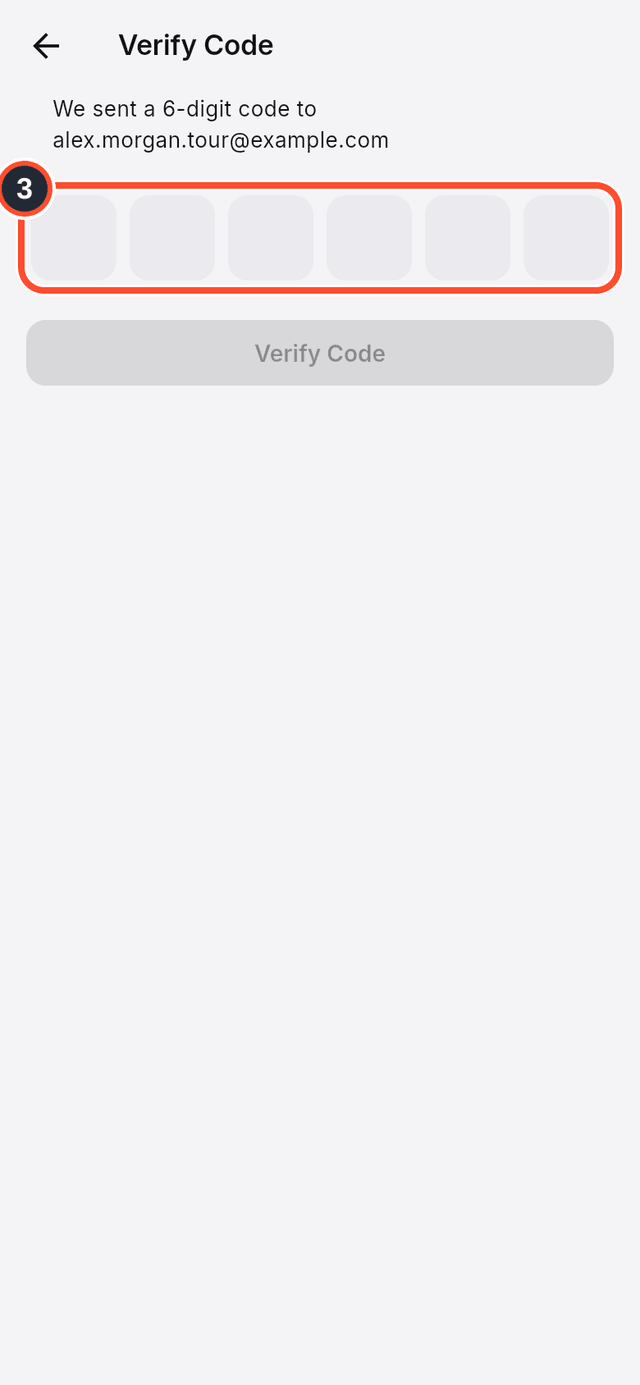
- A screen called
Verify Codeopens. Type the six-digit code from your email into the boxes. DuoCents signs you in as soon as the sixth digit is in.
Tips
- The first time you sign in, DuoCents creates your organization for you.
- You can change the app's language at any time: open the menu and choose
Language.