
A tour of the app
The bottom bar, Bella and the app menu: where everything lives.
Updated 2026-10-07
DuoCents keeps its everyday screens one tap away and everything else in a menu. This is the whole map.
Where to find it
You land on Home after you sign in.
Steps
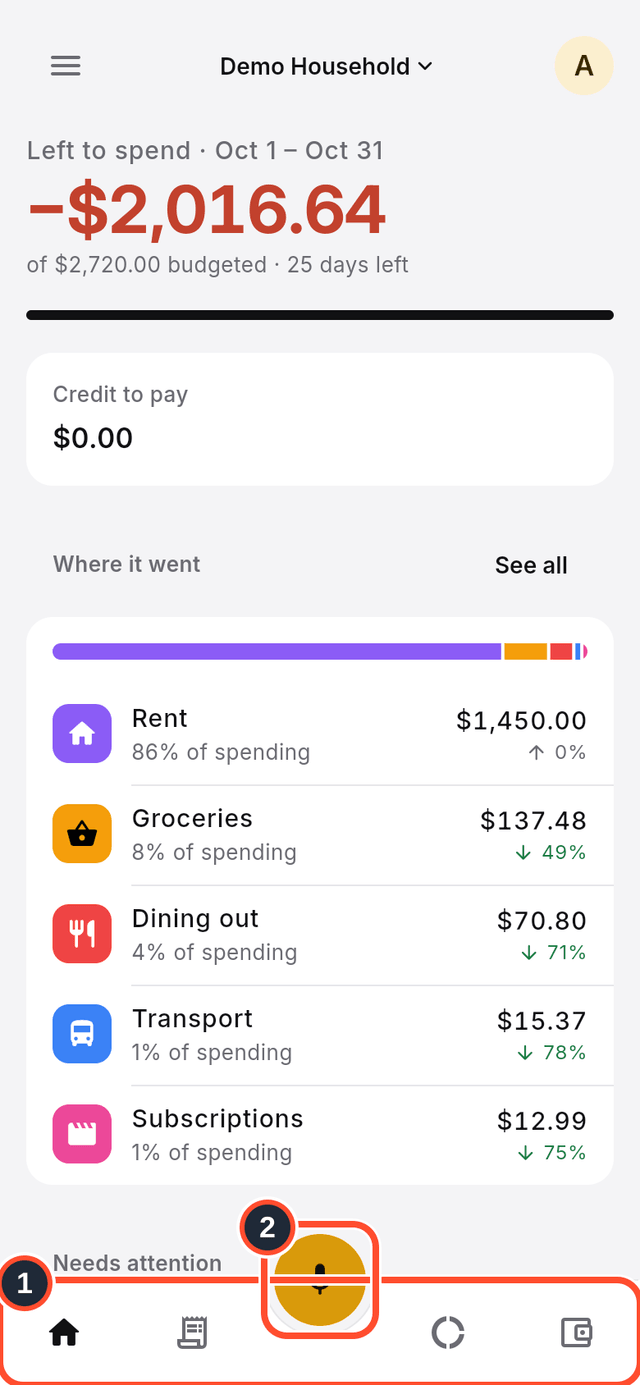
- The bottom bar has four tabs:
Home,Transactions,BudgetandAccounts. Tap a tab to switch screens. - The round button in the middle of the bar is Bella, an animated assistant. It opens the chat, where you can type or speak a message to add a transaction. Its label is
Ask Bella.
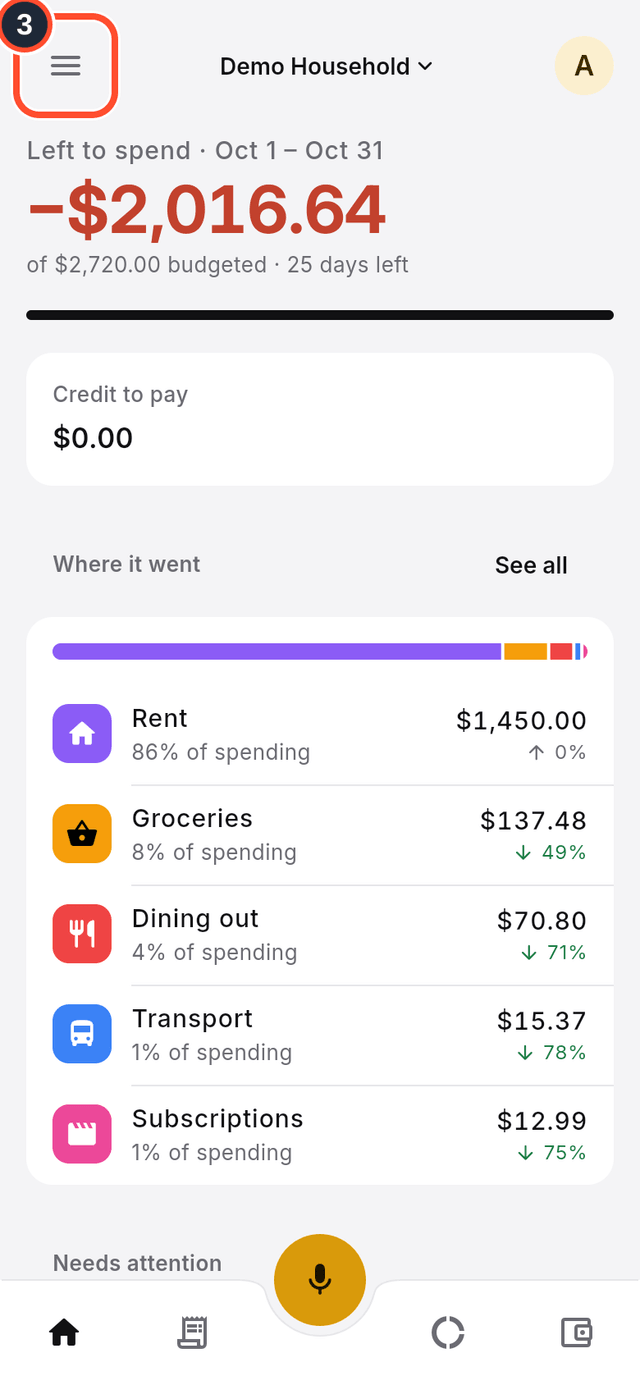
- Tap the menu button at the top left to open the app menu.
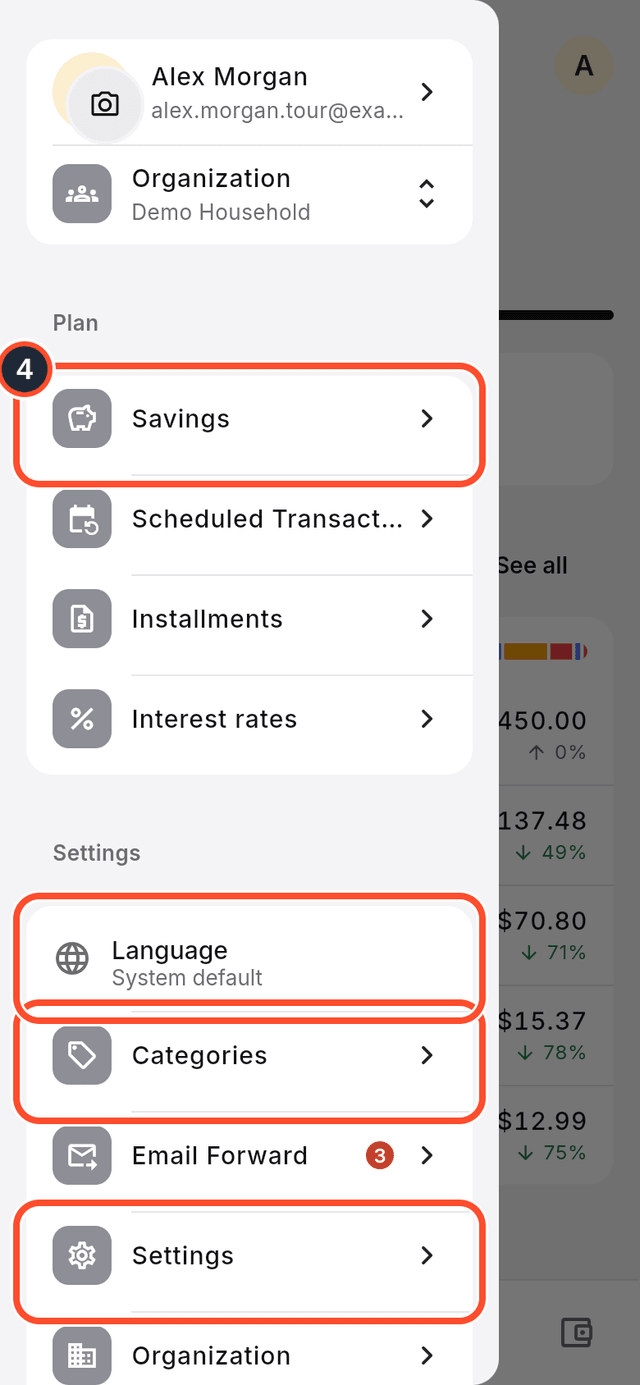
- The menu holds everything else, such as
Savings,Categories,LanguageandSettings.
Tips
- Your profile and your organization are at the top of the menu.
- Not everything is in the bar: savings, installments and scheduled transactions live in the menu.